Add a Repository
Create a new repository
SA is designed to work with repositories (repos), which are just folder structures following a certain layout.
While not required, multiple repos can be setup for different classes of hardware, such as 'workstations', 'servers', 'computerlabs', 'public', etc. Alternatively, repos could be setup for different departments or areas, allowing isolated admin management for each repo.
Each repo will have its own URL, database, and folder hierarchy. If multiple repos are necessary, symlinks can be used to reduce duplication for things like packages and installers.
In this section, we will create a new repository called 'workstations'.
Clone the source from github
I recommend using git to create the repos, this will make maintenance updates easier. Clone the SA source code into a folder called 'source', then be careful to not make any changes in the 'source' folder, so you can use git to pull code updates cleanly in the future.
TODO: Instructions to pull repo files here.
sudo mkdir -p /var/www/software_assistant/repo-workstations/source
chown -R [nonadmin_username]:[nonadmin_username] /var/www/software_assistant/repo-workstations
cd /var/www/software_assistant/repo-workstations/source
[git clone instructions here]
Copy the template config files to your new repo
The source folder contains template config files which must be copied to the new repo.
We will update the new config files in the following sections.
Create a database for the repo
Each repo will have its own database. Here we will create the database, and give SA access to the new database.
# Create a mysql username and password to assign to the new repo.
# Substitute the [username] and [password] in the next lines.
CREATE USER '[username]'@'localhost' IDENTIFIED BY '[password]';

# database name cannot have hyphens
CREATE DATABASE sa_workstations;

# Substitute the [username] below with a username created for software assistant
USE mysql;
INSERT INTO db (
 Host, Db, User,
 Select_priv, Insert_priv, Update_priv, Delete_priv,
 Create_priv, Drop_priv, Grant_priv, References_priv,
 Index_priv, Alter_priv, Create_tmp_table_priv, Lock_tables_priv,
 Create_view_priv, Show_view_priv, Create_routine_priv, Alter_routine_priv,
 Execute_priv, Event_priv, Trigger_priv
) VALUES (
 'localhost','sa_workstations','[username]',
 'Y','Y','Y','Y',
 'Y','Y','N','N',
 'Y','Y','Y','Y',
 'Y','Y','Y','Y',
 'Y','Y','Y'
 );

# dont forget this or the new account wont work
FLUSH PRIVILEGES;
Configure the repo to use the new database
Update the dbname, user, and pass in the config.phps file.
    'db' => [
        'type'      => 'mysql',
        'host'      => 'localhost',
        'dbname'    => 'sa_workstations',
        'user'      => '[dbusername]',
        'pass'      => '[dbpassword]',
    ],
Configure the certificate hierarchy
SA uses mutual TLS authentication, which requires both the SA client and the webserver to authenticate each other using X.509 certificates.
Before creating any certificates, we need to configure the hierarchy for the organization.
NOTE: DNS and server URLs are added to the root_ca and client certs, be sure you are happy with the DNS and server URLs before continuing. Changing these in the future would be risky.
    # Add organizational details, not all are required, only Name and UnitName
#    "countryName" => "US",
#    "stateOrProvinceName" => "[state]",
#    "localityName" => "[city]",
    "organizationName" => "[organization]",
    "organizationalUnitName" => "[department]",
Some configuration must be placed in openssl.cnf, check for options in square brackets and add update as needed:
# update with server DNS names
nameConstraints = critical, permitted;DNS:[server_domain_name1], permitted;DNS:[server_domain_name2]

...

[alt_names]
# email must be lowercase
email = [admin@email.edu]

# add the BaseURL of your REPO server (in the future, will be used to select the correct client cert)
URI.1 = https://[server_domain_name1]/repo-workstations/
URI.2 = https://[server_domain_name2]/repo-workstations/

[alt_names_webserver]
# email must be lowercase
email = [admin@email.edu]

# add the DNS names of your web server here
DNS.1 = [server_domain_name1]
DNS.2 = [server_domain_name2]
The repo short_name will be saved in the DN of the created certificates. Check the configured repo-name and make sure its what you want to use:
    'repo' => [
        # Name of this repo, for email alerts, url rewriting, etc.
        # Must match what is configured as the primary repo in clientconfig.xml.
        'name' => '[Department] Workstations',

        # Short name of this repo, used in certificate DNs.
        # If setting up multiple repos, use a unique name for each repo
        # or you will not be able to install multiple root_ca certs in
        # your browser. Keep name short, completed DN must be < 64
        # characters including date, time, certtype and certname.
        'short_name' => 'workstations',
Create the certificate hierarchy
In this step, we will create a basic X.509 hierarchy with certificates to be used for the server, clients, admins, and provisioning scripts.
Keep these lines in your password manager, then paste them into the terminal.
# Use a strong password, such as 63 random alpha-numeric characters from https://www.grc.com/passwords.htm
# Keep these lines in your password manager for future maintenance.
ca_root_pass="[replace with 63 random characters]"
ca_inter_pass="[replace with 63 random characters]"
repo_name="workstations"
Copy these commands into a text editor, then run them on the server. Make sure there are no errors reported.
# setup paths
cd /var/www/software_assistant/repo-${repo_name}/root_ca/ || exit
caMgmt="../source/php/caMgmt.php"

# ca_root cert, keep private key offline after finished creating hierarchy
$caMgmt create_ca_root "$ca_root_pass"

# create webserver certificate, CRL (needed for bundle), and bundle which is loaded into the server
$caMgmt create_client_cert "$ca_root_pass" webserver apache
$caMgmt create_crl "$ca_root_pass"
$caMgmt create_webserver_bundles

# create a client certificate for the admin's web browser
$caMgmt create_client_cert "$ca_root_pass" client admin1
$caMgmt create_client_cert_config

# add the admin's cert to the SA certificate authority (specify the admin cert on the command line, or run after the admin's cert was just created)
$caMgmt create_cert_tables
$caMgmt add_cert_to_ca_table ClientNonRenewable 0
$caMgmt give_cert_admin_portal_access

# create intermediate cert, private key kept on this server, used to sign client certs
$caMgmt create_ca_intermediate "$ca_root_pass" "$ca_inter_pass" clientsigner

# switch into the new intermediate certs folder, use it to sign remaining certs
cd "$(ls -td -- */ | head -n1)" || { read -rp "Could not cd into new intermediate certs folder." && exit 1; }

# create intermediate CRL
../$caMgmt create_crl "$ca_inter_pass"

# create sa_updater provisioning cert
../$caMgmt create_client_cert "$ca_inter_pass" client provisioning_cert
../$caMgmt create_client_cert_config
../$caMgmt create_cert_tables
../$caMgmt add_cert_to_ca_table InstallerRenewable 0

# create sa_client fallback cert (if needed)
../$caMgmt create_client_cert "$ca_inter_pass" client shared_backup_cert
../$caMgmt create_client_cert_config
../$caMgmt create_cert_tables
../$caMgmt add_cert_to_ca_table InstallerRenewable 0

# re-build the root cert bundles (apache restart will be required)
cd ..
$caMgmt create_webserver_bundles
In config.phps, use the new intermediate CA folder name to set the intermediate CA used for when SA signs certificates
    'certs' => [
        'signing' => [
            # location of intermediate_ca files to be used for signing client requests
            # DONT FORGET TO ADD PERMISSION FOR APACHE TO READ THE INTERMEDIATE SIGNING KEY:
            #   chgrp www-data ca_key.pem && chmod 640 ca_key.pem
            'ca_path' => REPO_ROOT . "/root_ca/[datetime]-clientsigner-intermediate_ca",
        ],
    ],
Configure the new repo in Apache
The Apache configuration in ubuntu allows configuring each site with a separate config file. A template config file is included in the source/setup/config_template folder.
sudo cp /var/www/software_assistant/repo-workstations/source/setup/config_template/apache_site-software_assistant.conf /etc/apache2/sites-available/software_assistant.conf
Edit the new copy of software_assistant.conf, skip down to the VirtualHost *:443 section and replace everything in [square brackets] with what is appropriate for your environment.
- ServerName
- ServerAlias (or comment it out)
- ErrorLog
- CustomLog
- SSLCertificateFile
- SSLCertificateKeyFile
- admins_ipv4
- admins_ipv6
- sa_add_repo_aliases (very bottom, only if adding multiple repos)
- sa_add_repo_dirs (very bottom, only if adding multiple repos)
Enable apache modules, the new site, check the config, and restart:
sudo a2enmod ssl
sudo a2enmod headers
sudo a2enmod macro
sudo a2enmod actions
sudo a2ensite software_assistant
sudo apachectl configtest
# make sure the config is OK, resolve errors before continuing
sudo service apache2 restart
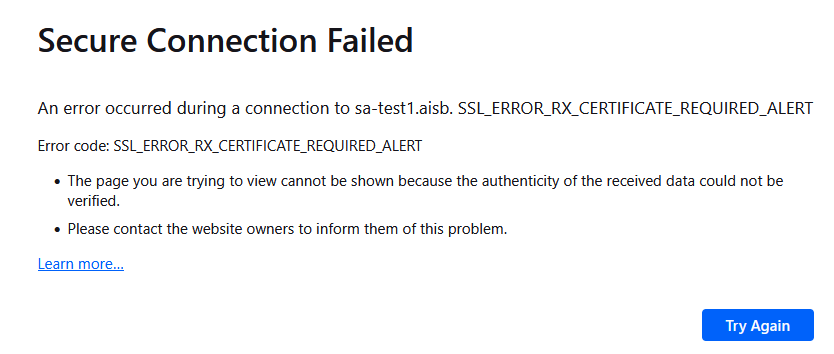
At this point, you should be able to connect to the server from your web browser and get an error similar to the following:
https://[primary_url]/repo-workstations/
Install client certs into the Admin's web browser
To access the web interface, you need to be connecting from a machine using an admin IP address (configured above), as well as using a client certificate (created above).
Use smb or ssh to transfer the [datetime]-admin1-client_chain_key_cert.p12 and ca_cert.pem to your admin machine, and:
For Firefox, go to 'settings', 'view certificates':
- import [datetime]-admin1-client_chain_key_cert.p12 into your browsers certificate database under 'Your Certificates'.
- import ca_cert.pem into your browsers certificate database under 'Authorities'.
For Chrome/Edge, you'll install the certs into the operating system store. For windows, search for and run 'Manage User Certificates':
- import [datetime]-admin1-client_chain_key_cert.p12 into the 'Personal' folder.
- import ca_cert.pem into the 'Trusted Root Certificate Authorities' folder.
TODO: check this procedure.
After installing the certificate, restart your browser and try visiting the SA server again, using the URL like this:
https://[primary_url]/repo-workstations/
You should be asked to approve using the new client certificate:
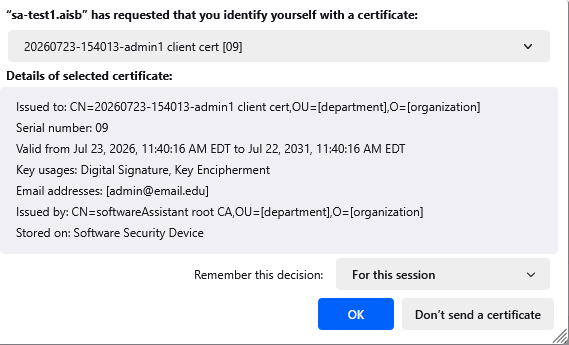
Make sure the certificate is correct, and click 'OK'. You should then be presented with the SA log-in screen.

Configure the admin username and password
Configure the admin password for the web interface. Use a 63 character long password, such as one generated at grc perfect passwords.
Convert the password to a sha256 hash like this:
Add the username and password hash to the config.phps file like this:
    # web interface
    'session' => [
        'users' => [
            '[username]' => '[sha256sum_of_password]',
        ],
    ],
If everything is working, you should now be able to sign into the admin web interface.
If you are unable to sign into the web interface, continue with troubleshooting steps below: